Creating a Custom WordPress Settings Page: A Beginner's Guide
Learn how to build a custom WordPress settings page with a select field, text input, and checkboxes, then save the values to the database.

Senior Web Developer

On this page9 sections
- Step 1: Create a new PHP file in your WordPress theme or plugin directory and name it something like “word-count-settings.php“.
- Step 2: Define the WordCountAndTimePlugin class. The class name can be anything. For now, we’re defining it WordCountAndTimePlugin.
- Step 3: Initialize the class
- Step 4: Define the settings function
- Step 5: Define the sanitizeLocation function
- Step 6: Define the HTML callback functions
- Step 7: Define the adminPagefunction
- Step 8: Define the ourHTMLfunction
- Step 9: Create an instance of the WordCountAndTimePlugin class
For developers looking to extend the functionality of WordPress, creating a custom settings page can be a crucial skill. This allows you to offer your users a dedicated area where they can configure options for your theme or plugin. In this guide, we’ll walk through how to create a settings page that includes a select field, text field, and checkbox, explaining how to display these on the page and save the input to the database.
Step 1: Create a new PHP file in your WordPress theme or plugin directory and name it something like “word-count-settings.php“.
Step 2: Define the WordCountAndTimePlugin class. The class name can be anything. For now, we’re defining it WordCountAndTimePlugin.
- The code defines a class called ‘WordCountAndTimePlugin’ using the ‘class’ keyword.
class WordCountAndTimePlugin{ // ... Constructor and methods will go here ...}Step 3: Initialize the class
-
Inside the class, a constructor function is defined using the ‘__construct‘ method.
-
The constructor function adds two actions: ‘admin_menu‘ and ‘admin_init‘.
-
The ‘admin_menu‘ action is used to add a new options page to the WordPress admin menu.
-
The ‘admin_init‘ action is used to initialize the plugin settings.
class WordCountAndTimePlugin{    function __construct()    {        add_action('admin_menu', array($this, 'adminPage'));        add_action('admin_init', array($this, 'settings'));    }
}
Step 4: Define the settings function
-
The ‘settings‘ function is defined to handle the plugin settings.
-
Inside this function, several settings fields are added using the ‘add_settings_field‘ function.
-
Each setting field has a unique name, label, and HTML callback function.
-
The ‘register_setting‘ function is used to register each setting field, specifying the sanitize callback function and default value.
class WordCountAndTimePlugin{    function __construct()    {        add_action('admin_menu', array($this, 'adminPage'));        add_action('admin_init', array($this, 'settings'));    }
    function settings()    {        add_settings_section('wcp_first_section', null, null, 'word-count-settings-page');
        // Select        add_settings_field('wcp_location', 'Display Location', array($this, 'locationHtml'), 'word-count-settings-page', 'wcp_first_section');        register_setting('wordcountplugin', 'wcp_location', array('sanitize_callback' => array($this, 'sanitizeLocation'), 'default' => '0'));        // Text Field        add_settings_field('wcp_headline', 'Headline Text', array($this, 'headlineHtml'), 'word-count-settings-page', 'wcp_first_section');        register_setting('wordcountplugin', 'wcp_headline', array('sanitize_callback' => 'sanitize_text_field', 'default' => 'Post Statistics'));        // Checkbox        add_settings_field('wcp_wordcount', 'Word Count', array($this, 'checkboxHtml'), 'word-count-settings-page', 'wcp_first_section', array('theName' => 'wcp_wordcount'));        register_setting('wordcountplugin', 'wcp_wordcount', array('sanitize_callback' => 'sanitize_text_field', 'default' => '1'));
        add_settings_field('wcp_charactercount', 'Character Count', array($this, 'checkboxHtml'), 'word-count-settings-page', 'wcp_first_section', array('theName' => 'wcp_charactercount'));        register_setting('wordcountplugin', 'wcp_charactercount', array('sanitize_callback' => 'sanitize_text_field', 'default' => '1'));
        add_settings_field('wcp_readtime', 'Read Time', array($this, 'checkboxHtml'), 'word-count-settings-page', 'wcp_first_section', array('theName' => 'wcp_readtime'));        register_setting('wordcountplugin', 'wcp_readtime', array('sanitize_callback' => 'sanitize_text_field', 'default' => '1'));    }
}
A note on
$args. In this code,'theName' => 'wcp_wordcount'is an argument passed to thecheckboxHtmlcallback. InsidecheckboxHtml, it is available as$args['theName']. This lets us reuse one callback for several settings fields while still telling each checkbox apart.
Step 5: Define the sanitizeLocation function
When we need to deal with custom validation logic for a particular field, we can create a custom sanitization function like this.
-
The ‘sanitizeLocation‘ function is defined to sanitize the select input for the ‘wcp_location‘ setting.
-
It checks if the input value is either 0 or 1.
-
If the input value is invalid, an error message is added and the function returns the current value of ‘wcp_location‘.
// Sanitize the select input i.e. location value validation function sanitizeLocation($input) { if ($input != 0 && $input != 1) { add_settings_error('wcp_location', 'wcp_location_error', 'Display location must be beginning or end.'); return get_option('wcp_location'); } return $input; }Step 6: Define the HTML callback functions
-
Three HTML callback functions are defined: ‘locationHtml‘, ‘headlineHtml‘, and ‘checkboxHtml‘.
-
These functions generate the HTML markup for the select input, text input, and checkbox input fields, respectively.
// Handle the select input HTML    function locationHtml()    { ?>        <select name="wcp_location">            <option value="0" <?php selected(esc_attr(get_option('wcp_location')), 0); ?>>Beginning of Post</option>            <option value="1" <?php selected(esc_attr(get_option('wcp_location')), 1); ?>>End of Post</option>        </select>    <?php }    // Handle the text input HTML    function headlineHtml()    { ?>        <input type="text" name="wcp_headline" value="<?php echo esc_attr(get_option('wcp_headline')); ?>">    <?php }
    // Handle the checkbox input HTML    function checkboxHtml($args)    { ?>        <input type="checkbox" name="<?php echo $args['theName']; ?>" value="1" <?php checked(esc_attr(get_option($args['theName'])), 1); ?>>    <?php }
Step 7: Define the adminPagefunction
-
The ‘adminPage‘ function is defined to generate the HTML markup for the options page.
-
It uses the ‘add_options_page‘ function to add a new options page to the WordPress admin menu.
-
The function specifies the page title, menu title, capability required to access the page, and the HTML callback function.
function adminPage() { add_options_page('Word Count Settings', 'Word Count', 'manage_options', 'word-count-settings-page', array($this, 'ourHtml')); }Step 8: Define the ourHTMLfunction
-
The ‘ourHTML‘ function is defined to generate the HTML markup for the options page content.
-
It includes a form with the ‘action‘ attribute set to ‘options.php‘ and the ‘method‘ attribute set to ‘POST‘.
-
Inside the form, the ‘settings_fields‘ function is used to output the hidden fields required for the settings.
-
The ‘do_settings_sections‘ function is used to output the sections and fields defined in the ‘settings’ function.
-
Finally, the ‘submit_button‘ function is used to output the submit button.
function ourHTML() { ?> <div class="wrap"> <h1>Word Count Settings</h1> <form action="options.php" method="POST"> <?php settings_fields('wordcountplugin'); do_settings_sections('word-count-settings-page'); submit_button(); ?> </form> </div> <?php }Step 9: Create an instance of the WordCountAndTimePlugin class
-
Outside the class definition, an instance of the ‘WordCountAndTimePlugin’ class is created.
-
This will initialize the plugin and execute the constructor function.
$wordCountAndTimePlugin = new WordCountAndTimePlugin();Now that we’ve explored how to create a settings page within WordPress, here is the complete code snippet you would use for a plugin that adds a settings page with select, text, and checkbox fields. This code is designed to get you started on building your own customized settings for your WordPress plugins.
<?php/*Plugin Name: Our First Unique PluginPlugin URI: https://www.rajandangi.com.npDescription: This is our first unique pluginAuthor: Rajan DangiVersion: 1.0Author URI: https://www.rajandangi.com.npText Domain: wcdomainDomain Path: /languages*/class WordCountAndTimePlugin{    function __construct()    {        add_action('admin_menu', array($this, 'adminPage'));        add_action('admin_init', array($this, 'settings'));        add_action('init', array($this, 'languages'));    }
    function languages()    {        load_plugin_textdomain('wcdomain', false, dirname(plugin_basename(__FILE__)) . '/languages');    }
    function settings()    {        add_settings_section('wcp_first_section', null, null, 'word-count-settings-page');
        // Select        add_settings_field('wcp_location', esc_html__('Display Location', 'wcdomain'), array($this, 'locationHtml'), 'word-count-settings-page', 'wcp_first_section');        register_setting('wordcountplugin', 'wcp_location', array('sanitize_callback' => array($this, 'sanitizeLocation'), 'default' => '0'));
        // Text Field        add_settings_field('wcp_headline', 'Headline Text', array($this, 'headlineHtml'), 'word-count-settings-page', 'wcp_first_section');        register_setting('wordcountplugin', 'wcp_headline', array('sanitize_callback' => 'sanitize_text_field', 'default' => 'Post Statistics'));
        // Checkbox        add_settings_field('wcp_wordcount', 'Word Count', array($this, 'checkboxHtml'), 'word-count-settings-page', 'wcp_first_section', array('theName' => 'wcp_wordcount'));        register_setting('wordcountplugin', 'wcp_wordcount', array('sanitize_callback' => 'sanitize_text_field', 'default' => '1'));
        add_settings_field('wcp_charactercount', 'Character Count', array($this, 'checkboxHtml'), 'word-count-settings-page', 'wcp_first_section', array('theName' => 'wcp_charactercount'));        register_setting('wordcountplugin', 'wcp_charactercount', array('sanitize_callback' => 'sanitize_text_field', 'default' => '1'));
        add_settings_field('wcp_readtime', 'Read Time', array($this, 'checkboxHtml'), 'word-count-settings-page', 'wcp_first_section', array('theName' => 'wcp_readtime'));        register_setting('wordcountplugin', 'wcp_readtime', array('sanitize_callback' => 'sanitize_text_field', 'default' => '1'));    }
    // Sanitize the select input i.e. location value validation    function sanitizeLocation($input)    {        if ($input != 0 && $input != 1) {            add_settings_error('wcp_location', 'wcp_location_error', 'Display location must be beginning or end.');            return get_option('wcp_location');        }        return $input;    }
    // Handle the select input HTML    function locationHtml()    { ?>        <select name="wcp_location">            <option value="0" <?php selected(esc_attr(get_option('wcp_location')), 0); ?>>Beginning of Post</option>            <option value="1" <?php selected(esc_attr(get_option('wcp_location')), 1); ?>>End of Post</option>        </select>    <?php }    // Handle the text input HTML    function headlineHtml()    { ?>        <input type="text" name="wcp_headline" value="<?php echo esc_attr(get_option('wcp_headline')); ?>">    <?php }    // Handle the checkbox input HTML    function checkboxHtml($args)    { ?>        <input type="checkbox" name="<?php echo $args['theName']; ?>" value="1" <?php checked(esc_attr(get_option($args['theName'])), 1); ?>>    <?php }
    function adminPage()    {        add_options_page('Word Count Settings', __('Word Count', 'wcdomain'), 'manage_options', 'word-count-settings-page', array($this, 'ourHtml'));    }
    function ourHTML()    { ?>        <div class="wrap">            <h1>Word Count Settings</h1>            <form action="options.php" method="POST">                <?php                settings_fields('wordcountplugin');                do_settings_sections('word-count-settings-page');                submit_button();                ?>            </form>        </div>    <?php }
}$wordCountAndTimePlugin = new WordCountAndTimePlugin();
// Implement Word Count and Time Plugin on the front end of the website using the_content filterrequire_once plugin_dir_path(__FILE__) . 'inc/word-count.php';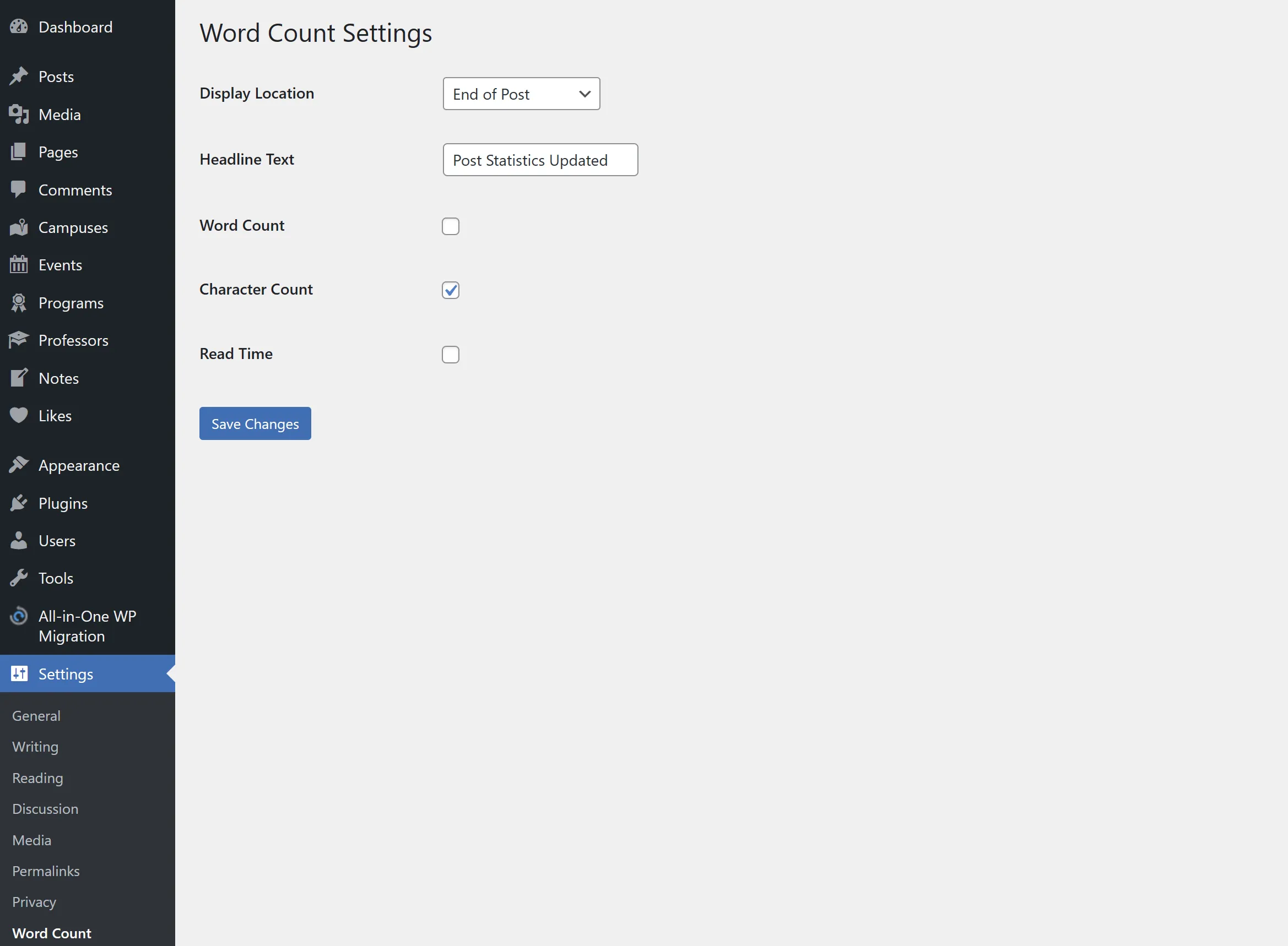
Actual Output
Rajan Dangi
Senior Web Developer
Senior web developer at SathiSoft. I write about PHP, Python, Linux and the practical details of building for the web.
Have a project in mind? Tell us what you are building.
Start a project